Setting Up Sonos as an AirPlay Device on Steam Deck Running Arch Linux
Integrating Sonos speakers with your Steam Deck can elevate your audio experience significantly. Here is how to set up Sonos as an AirPlay streaming device for music and video playback using Arch Linux.
When setting up your Sonos speakers, be aware that it may take a little while for them to produce sound after configuration. Generally, I have found that this setup performs better with the CachyOS Handheld image compared to the original Steam Deck image. If you encounter any issues with audio output, don't hesitate to restart services or even the entire system if needed to ensure optimal performance. It's important to note that when playing games on the Steam Deck Gaming Handheld, you may experience that the sound is not synchronized with the visuals. This issue arises because the AirPlay protocol is not specifically optimized for this usecase.
Now let's get started.
1. Install Pipewire Zeroconf:
Begin by installing the pipewire-zeroconf package, which enables device discovery for AirPlay.
sudo pacman -S pipewire-zeroconf
2. Backup the Pipewire Configuration:
Create a backup of the existing Pipewire configuration to ensure you can restore it if needed.
sudo cp /usr/share/pipewire/pipewire.conf /usr/share/pipewire/pipewire.conf.bak
3. Edit the Pipewire Configuration:
Open the Pipewire configuration file with a text editor and add the zeroconf module to detect Sonos devices.
sudo vim /usr/share/pipewire/pipewire.conf
Add the following line to the context.modules section:
{ name = libpipewire-module-raop-discover }
4. Enable and Restart Services:
Enable and restart necessary services to apply the changes.
sudo systemctl enable avahi-daemon.service; systemctl restart avahi-daemon.service; systemctl --user restart pipewire.service; systemctl --user restart pipewire-pulse.service
5. Check Audio Devices:
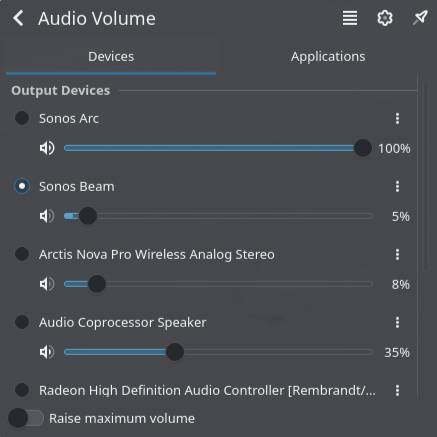
Now check the audio devices to see if the Sonos speakers appear. Make sure to activate "show virtual devices" in the three-dot-menu. And don't forget turn volume down, just in case.
6. Backup Avahi Daemon Service:
It’s a good practice to back up the Avahi daemon service configuration as well.
sudo cp /usr/lib/systemd/system/avahi-daemon.service /usr/lib/systemd/system/avahi-daemon.service.bak
7. Edit Avahi Daemon Service:
Update the service configuration to ensure it restarts on failure. Modify it using:
sudo vim /usr/lib/systemd/system/avahi-daemon.service
Add the following lines in the [Service] section:
Restart=always
RestartSec=3
8. Reload Daemon and Restart Services:
After making changes, reload the daemon and restart the Avahi service.
sudo systemctl daemon-reload; sudo systemctl enable avahi-daemon.service; sudo systemctl restart avahi-daemon.service
9. Reboot Your System:
Finally, reboot your Steam Deck to ensure all configurations take effect.
By following these steps, your Sonos speakers will now function as AirPlay devices, ready to stream audio from your Steam Deck. Enjoy a vibrant auditory experience!